
Docs
What’s new: one search panel, document references, back/forward
Search and @-references in one panel; documents that reference each other with a live path; copy link, right-click menus, back/forward, and references over MCP.
This guide covers features recently added to the Memwork desktop app.
One panel for search and references
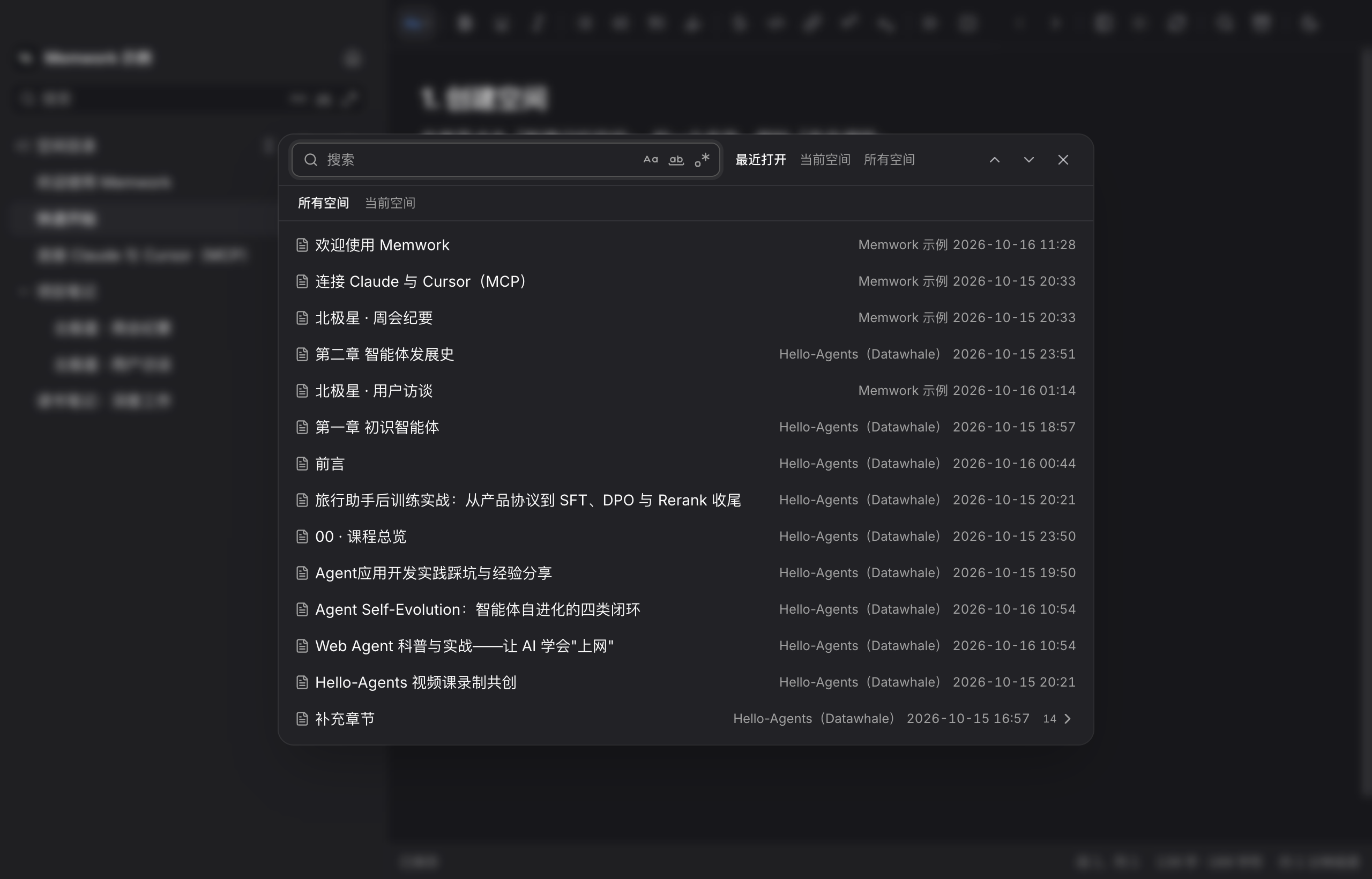
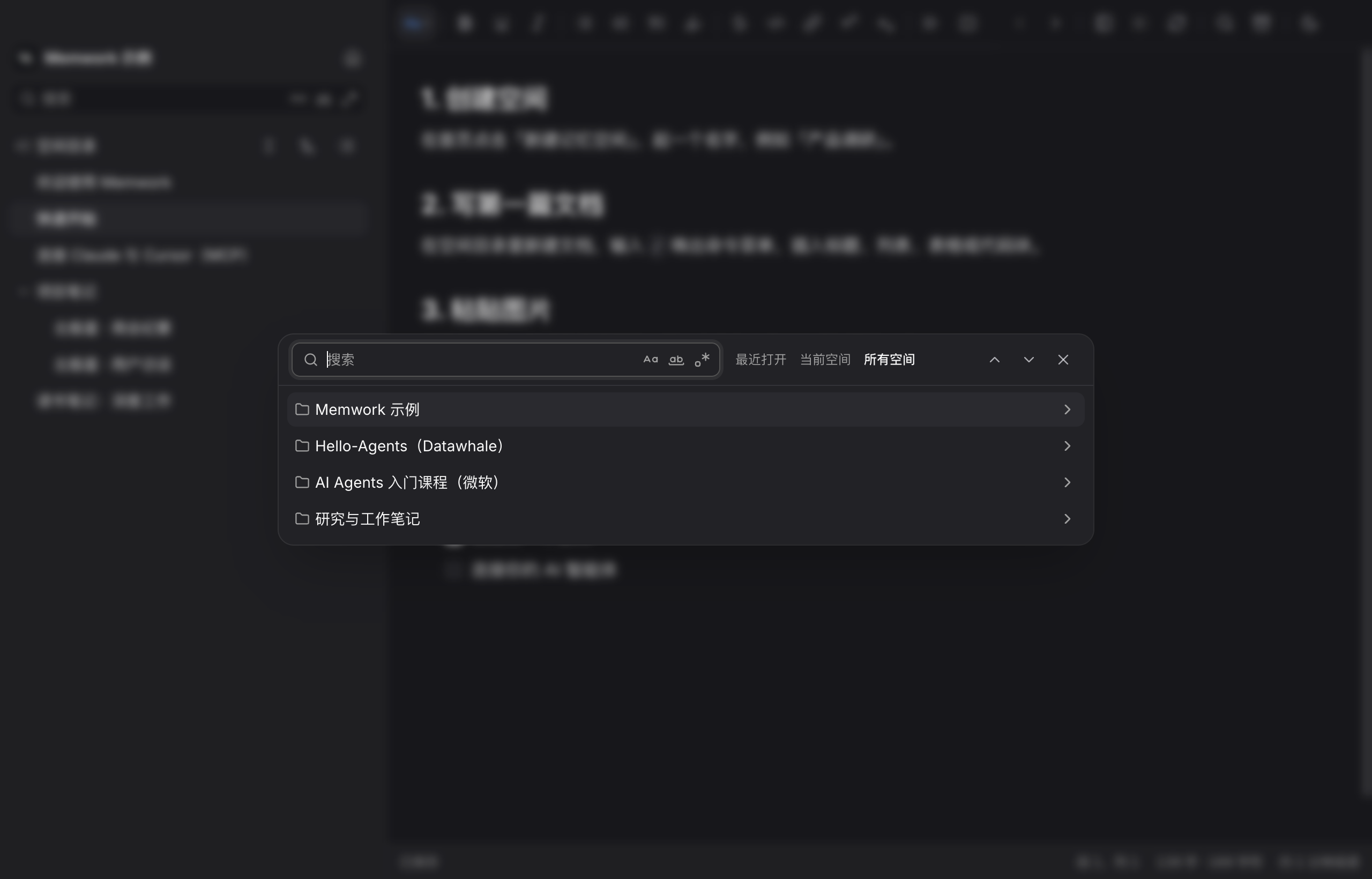
Click the search button in the top bar (or press ⌘K) to open the panel. Typing @ in a document opens the same panel; the only difference is that choosing a document inserts a reference instead of opening it.
Three scopes sit at the right of the input:
- Recent — documents you opened recently (up to 200, more load as you scroll), each with its space name. Inside a space you can filter to All spaces or This space.
- This space — browse the current space level by level, with a breadcrumb to go back.
- All spaces — pick a space, then drill into its tree.
Type to search titles and full text. Matching spaces are listed first, then documents. Choosing a space drills into it inside the panel; documents with children can be opened with →. Type space name/ to search within one space. Tab or ← → switches scope, and the panel remembers the last one you used. The Aa / ab / .* toggles are match case, whole word and regular expression.
Document references
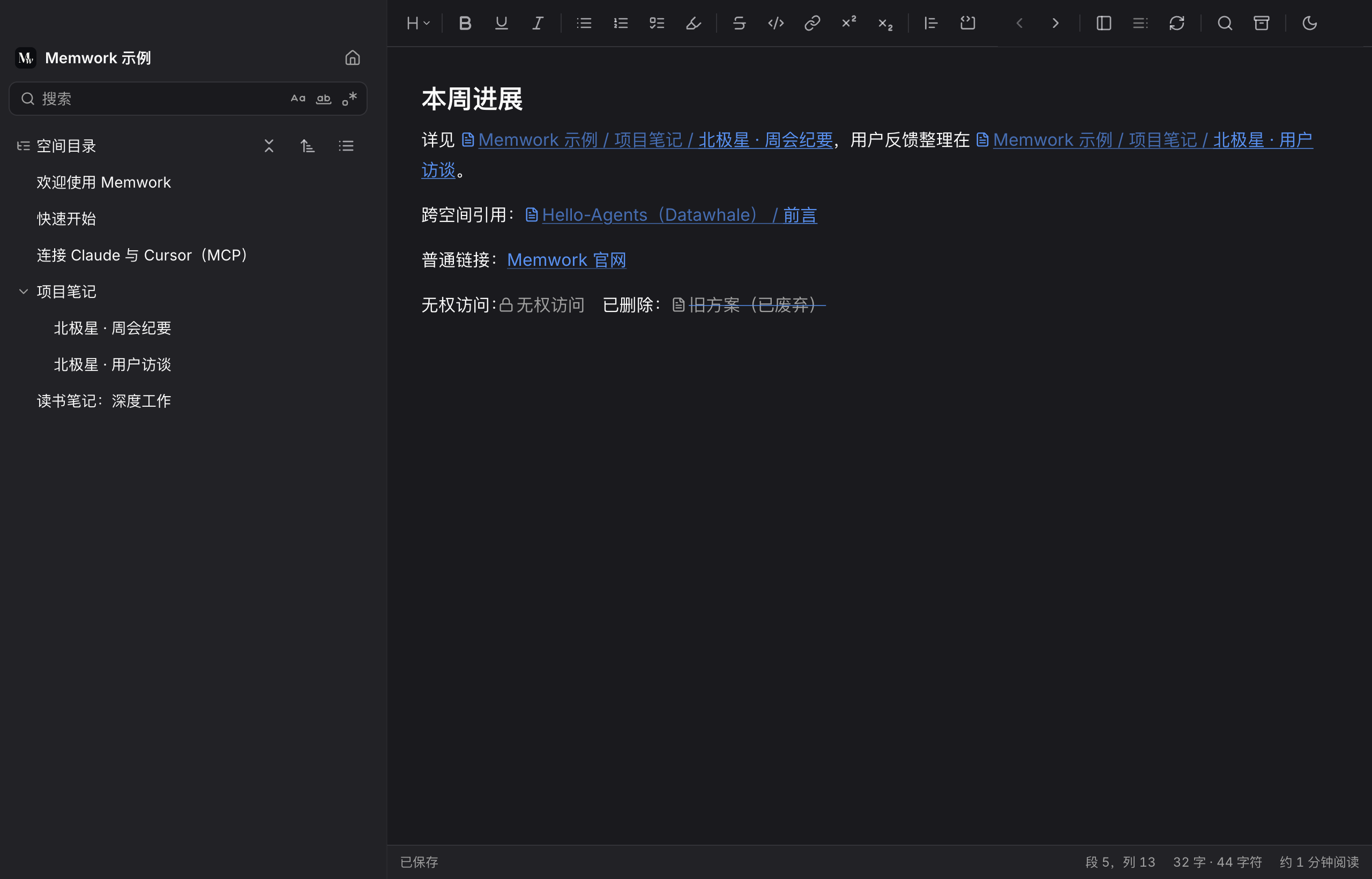
Pick a document with @ to insert a reference: a doc icon followed by its full path, Space / Parent / Title, styled like a normal link. The path updates when the target is renamed or moved.
- ⌘-click (Ctrl-click on Windows) opens a reference or link. A plain click just places the caret, so editing stays easy.
- If the target is deleted, the reference is shown greyed out and struck through.
- A reference you can't access shows a lock and No access, and never reveals the title.
Copy link and right-click menus
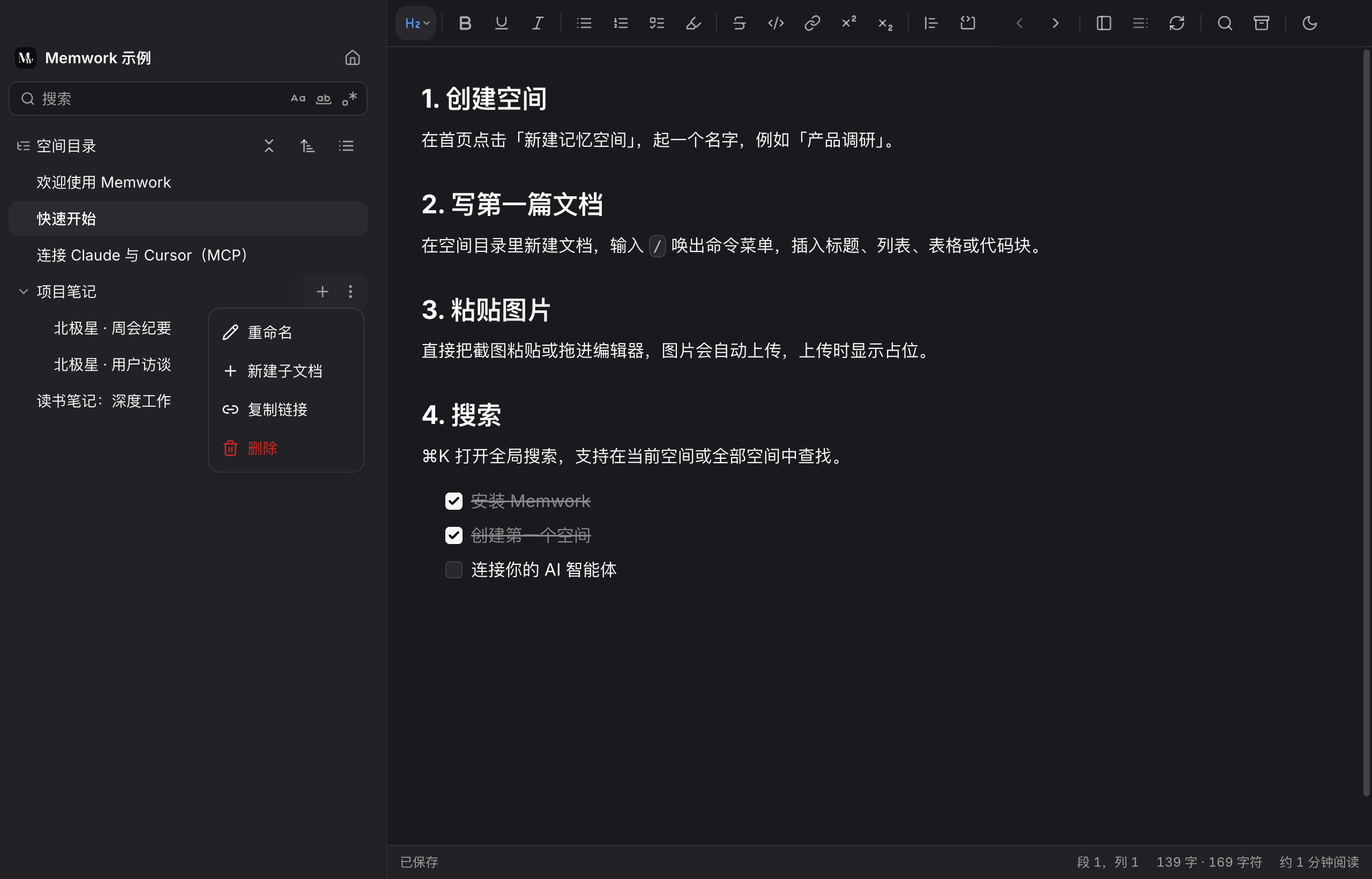
Hover a row in the tree to reveal + (new sub-document) and the ⋯ menu. Right-clicking the row opens the same menu: Rename, New sub-document, Copy link, Delete. Space cards and trash cards support right-click too.
Copy link copies https://memwork.okayok.ai/d/<document id> together with the title. Pasting it into a Memwork document turns it into a reference. Opening the link in a browser asks you to sign in first. After that you see the document if you have access; otherwise you get a No access page.
Back and forward
The far left of the top bar now has Back / Forward buttons for moving between documents, spaces and the trash. Mouse side buttons work too, as does the macOS trackpad swipe (when it's enabled in System Settings).
References over MCP
When an AI assistant connected over MCP reads a document, references appear as [Space / Parent / Title](https://memwork.okayok.ai/d/<id>). Writing a link in the same form saves it as a reference (only for your own documents). The new memwork_get_doc_by_link tool opens a document link directly. Every block type (headings, lists, task lists, quotes, code, tables, images, YouTube videos) has a documented Markdown form, and reading a document and writing it back loses nothing.